

If you receive an Insufficient Disk Space error message during the installation process, there are a few potential causes.
The best place to start is to check how much storage space you have available on your system drive.
To check your available disk space, open Finder, click on the Go menu from the menu bar and select Computer. Then, right-click on your system drive and select Get Info.

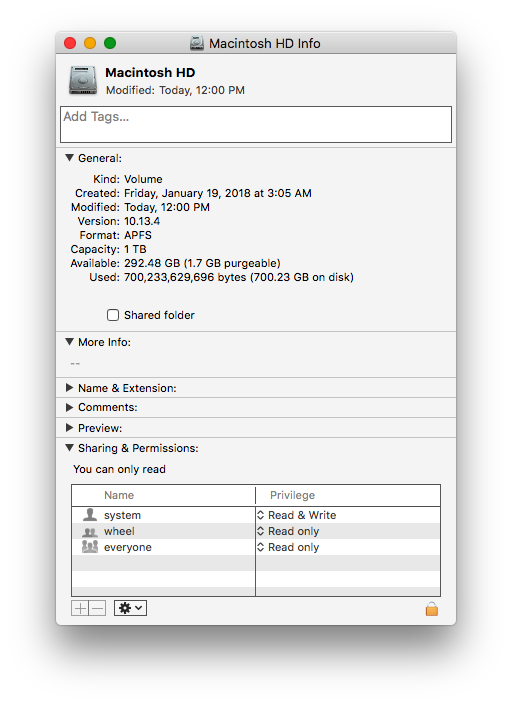
The amount of disk space that is accessible to any third-party installer (including the installers for our instruments) is the 'Available' number minus the 'Purgeable' number in parenthesis.
For example, in the screenshot below, the amount of accessible disk space to our installer would be 290.78 GB (292.48 GB minus 1.7 GB).
If you have a lot of purgeable data, it’s best to reach out directly to Apple Support since the process of clearing that space can be complex.
Alternatively, you can use an external drive to complete the installation by clicking “Choose location” during the Preparation stage of the installer.
If you received this error more than once and are now trying to install to a different hard drive that has enough space, please follow the steps in this article for details on how to properly direct the installer to the new location.