

Once you’ve purchased and installed your Sonic Extension(s), you’ll need to authorize Omnisphere to use them.
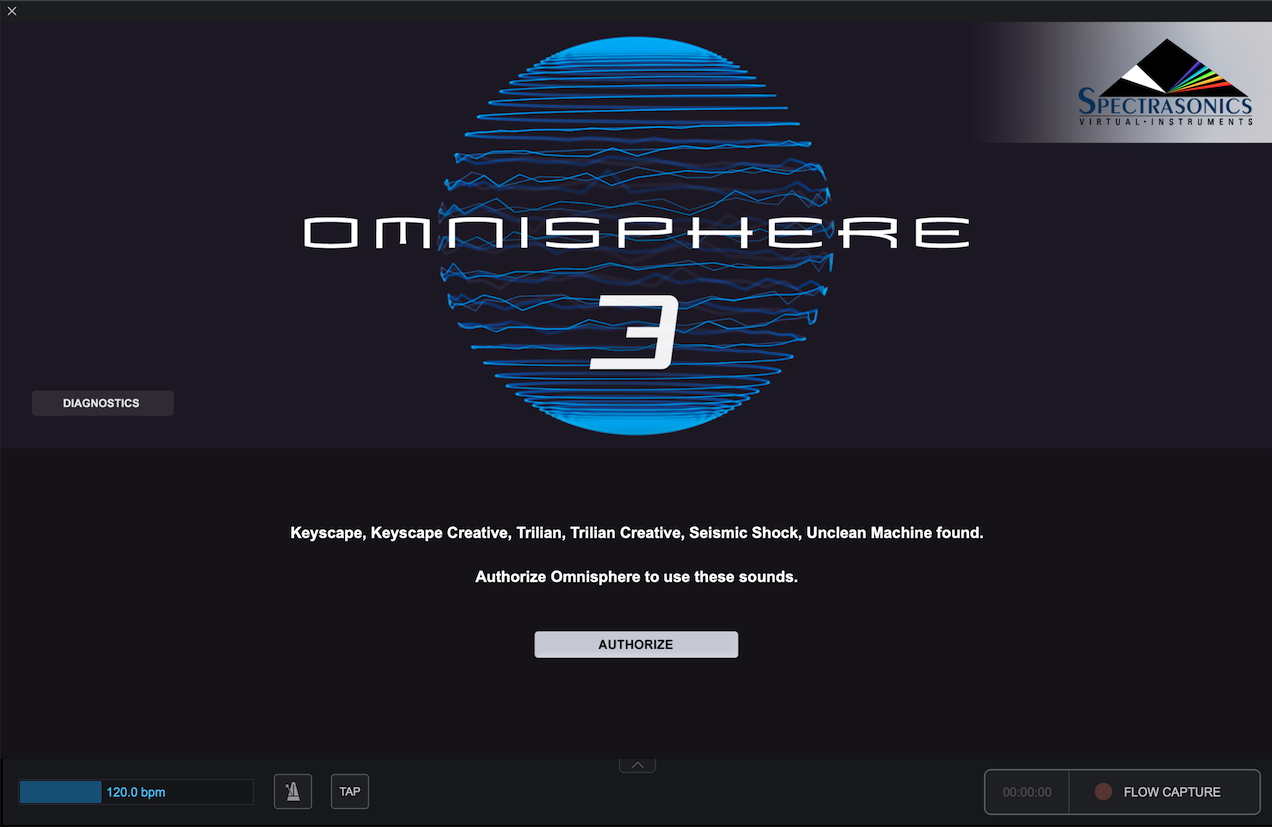
1. After you’ve installed your Sonic Extension(s), open Omnisphere. The Splash Screen will show you which Sonic Extensions need to be authorized. Click the AUTHORIZE button.
2. You will now see the Omnisphere Authorization System window. Click the REQUEST AUTHORIZATION button.
.png)
3. In the webpage that loads, you should see your Challenge Code already filled in. Fill out the remaining information on this page. When finished, click SUBMIT at the bottom of the page.

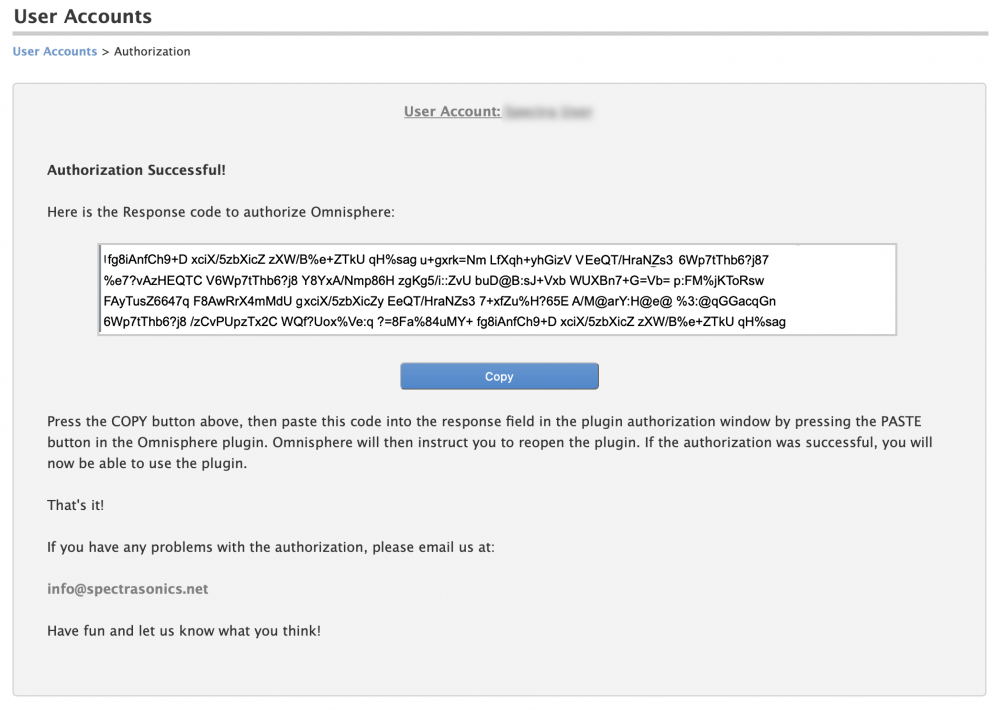
3. After that, you’ll be taken to a screen with your Reponse code. Below your Response Code, click on the Copy button:
4. Return to Omnisphere, click the PASTE button and the Response Code will now be displayed in Omnisphere.
.png)
5. Click the CONTINUE button in the bottom right, and you will be asked to restart Omnisphere.

6. Close the standalone application, or completely remove the instrument(s) from the tracks in your DAW. You can also simply restart your DAW.
7. Open a new instance of Omnisphere into your DAW or restart the Standalone. On the Omnisphere Splash Screen, you should see the installed and authorized Sonic Extension(s) listed on the right.
